Trim figure margins

Trim the white margin off a scientific figure

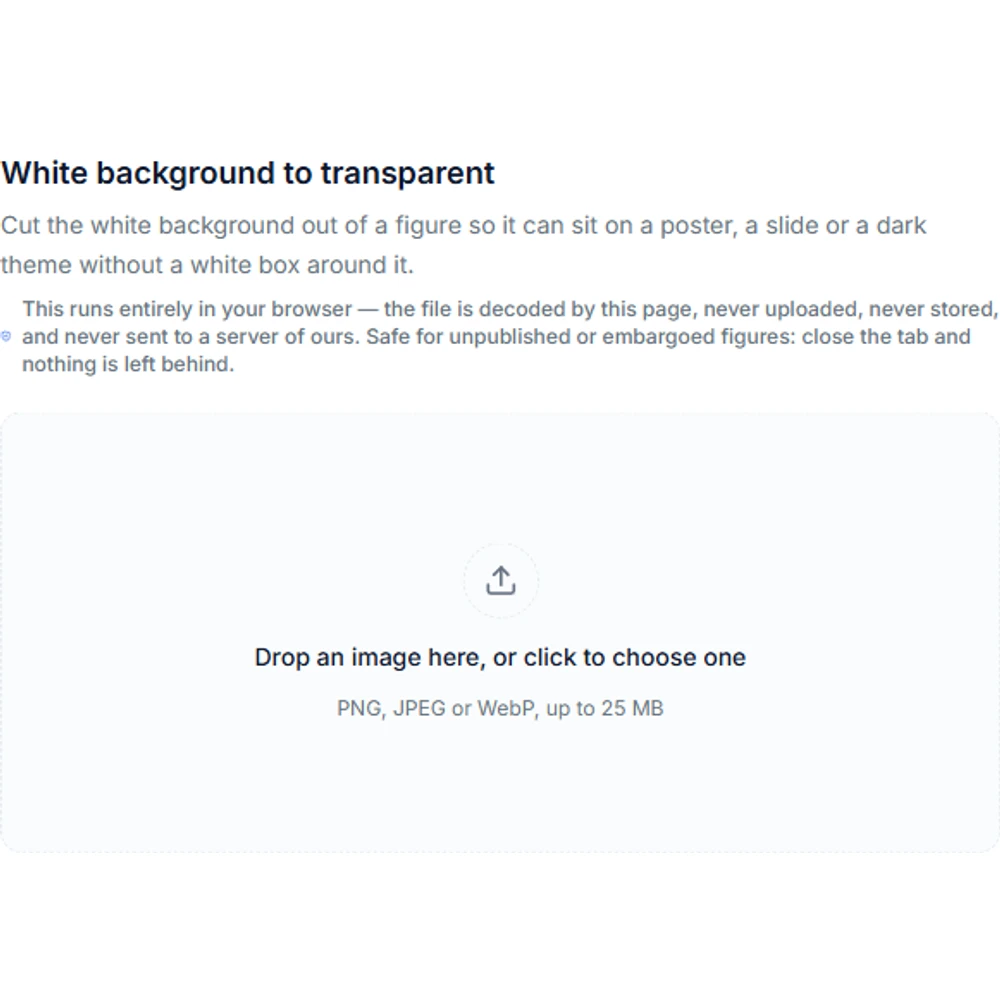
A figure exported from slides, a document, or a screen capture usually arrives inside a slab of empty white. Drop it in above and the crop rectangle appears immediately — free, no sign-in, no credits, and the file is read in your own browser rather than uploaded.

Arrastre la imagen aquí o haga clic para seleccionar

PNG, JPEG, WebP, GIF, AVIF, BMP — se leen localmente, no se suben. Máximo 25 MB.

Todo el proceso se realiza en su navegador: la imagen se decodifica directamente en esta página, no se sube, no se guarda y no se envía a nuestros servidores. Puede usar imágenes inéditas o en período de embargo con tranquilidad; al cerrar la pestaña, no queda nada.

Multiple AI models

GPT Image 2, Nano Banana, Seedream 5, Flux 2 Pro and more — pick the right one per figure.

Up to 4K export

Render at 1K, 2K or 4K for print-ready manuscript output.

Text & sketch to figure

Start from a prompt, or refine a rough hand-drawn sketch.

Free to start

Free account in seconds — every figure is saved to your private history.

Trim figure margins

What the tool looks like in use

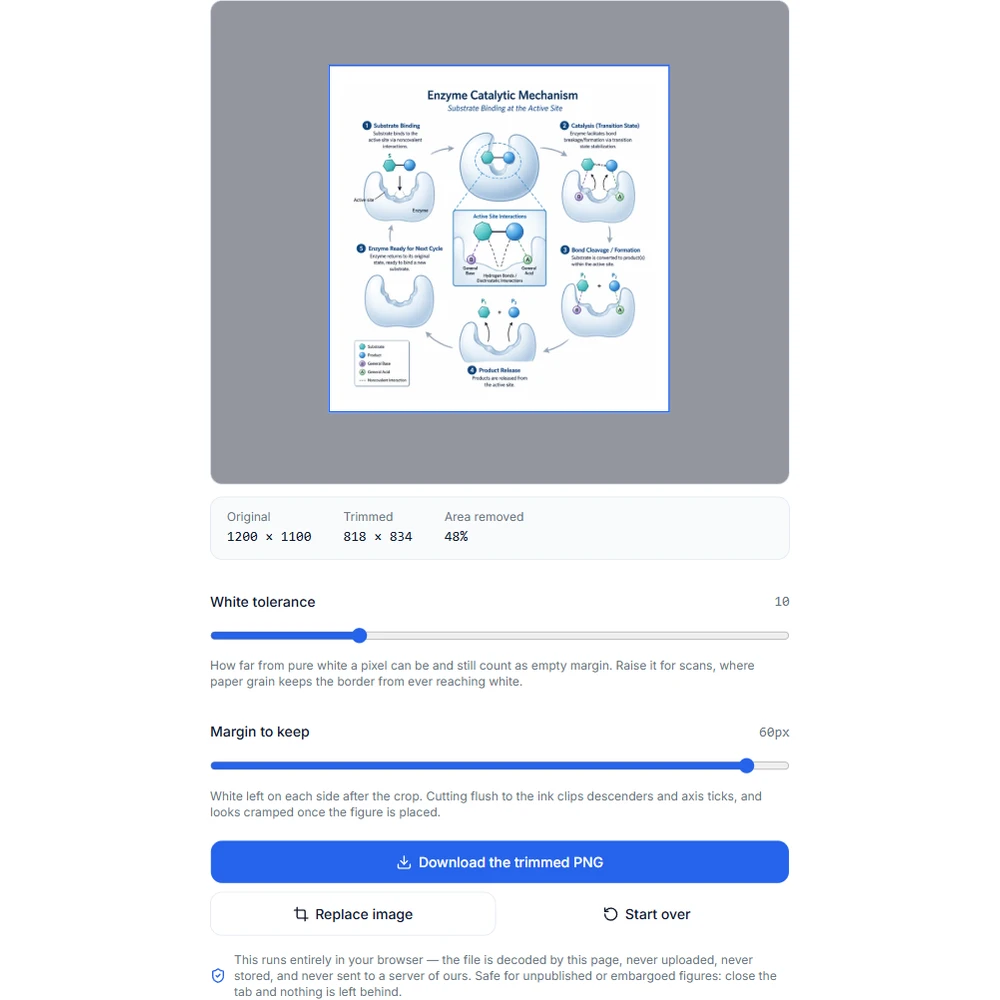
Screenshots of the trimmer itself, in the order you meet it: drop a file, read the proposed crop, tune the two sliders, check the numbers, download.

How the trim works

Find the content, agree on the edge, export the original

The padding slider adding a margin of white back around the detected content1

Load the figure without uploading it

Drag a file in, click to pick one, or paste a screenshot straight from the clipboard — screenshots are half the input for this tool and rarely exist as a file on disk. PNG, JPEG, WebP, GIF, AVIF, and BMP are accepted up to 25 MB. The image is decoded and measured in your browser: no request is sent, nothing is stored on a server, and no account is needed. That is the point of doing it here rather than in a web app that wants your unpublished figure first.

  • Drag and drop, file picker, or clipboard paste
  • PNG, JPEG, WebP, GIF, AVIF, BMP, up to 25 MB
  • No sign-in, no credits, no upload
  • Fully transparent pixels count as margin too
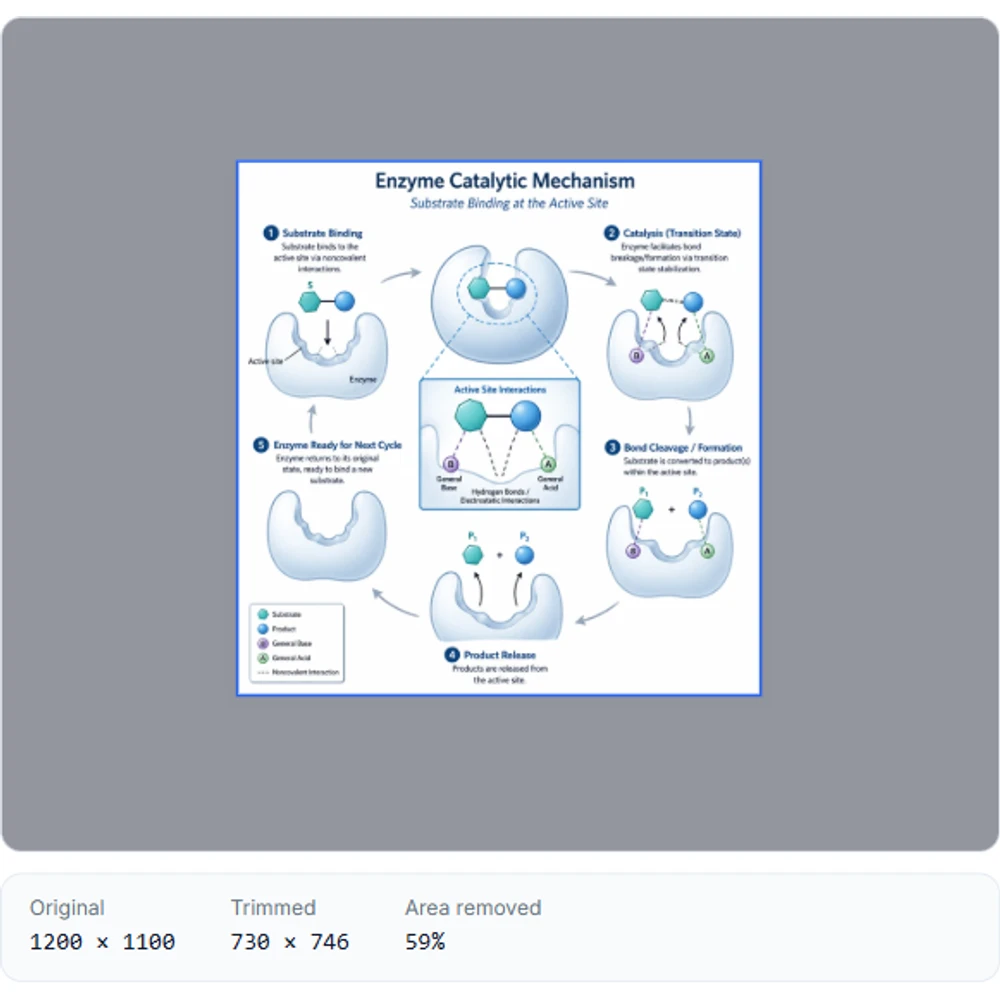
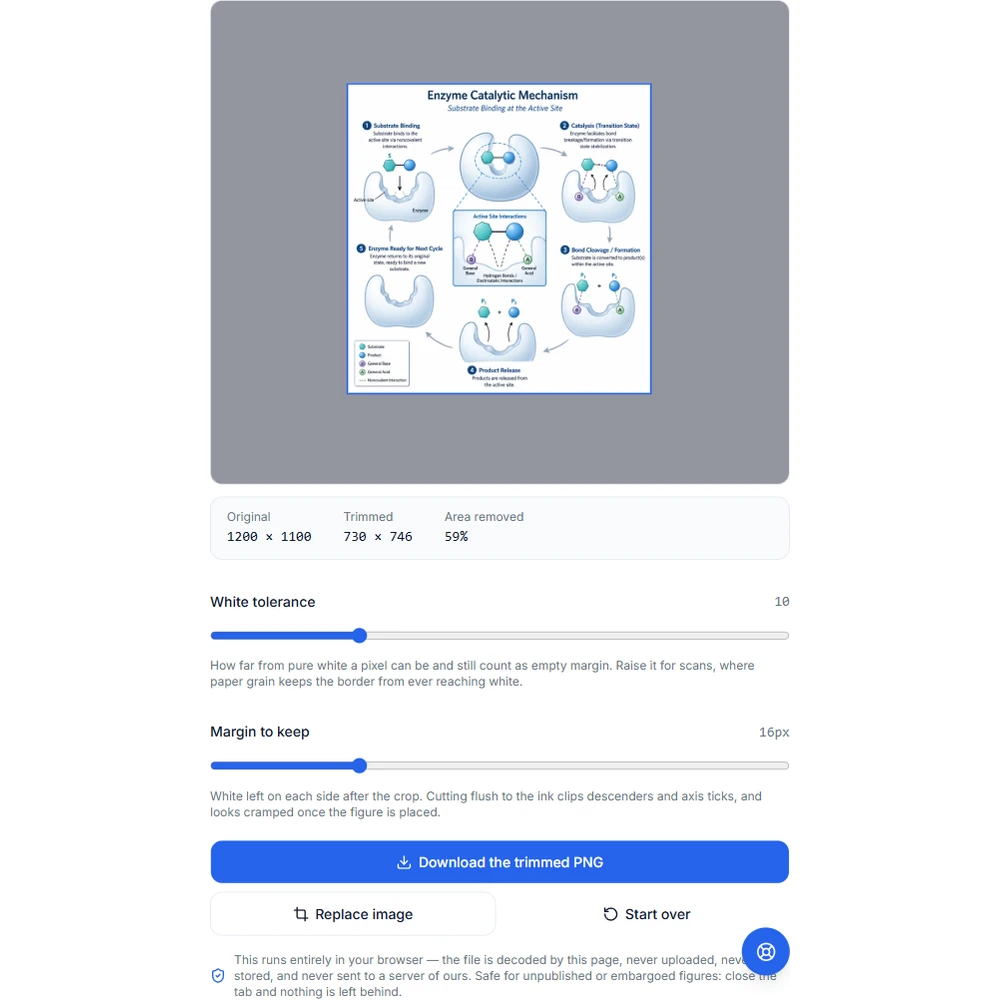
The statistics row showing original size, trimmed size, and the percentage of area removed2

Tolerance — when the background is not pure white

A figure exported straight from software has a background of exact white, and the default tolerance of 10 finds its edge without any adjustment. A scan does not: paper grain, a slight cream tint, and JPEG noise land a few levels below white, and at tolerance 0 that speckle reads as content, so almost nothing gets trimmed. Raise the slider until the rectangle snaps to the actual figure. It runs from 0 to 40 — if you have to go near the top, the background is dark enough that a faint gray fill or a ruled line may be swallowed with it, so check the preview rather than the number.

  • Software exports: leave it at the default
  • Scans and photos: raise it until the rectangle tightens
  • Too high can eat a light gray panel or a faint rule
The download button saving the cropped figure as a PNG file3

Padding — do not cut flush to the ink

A crop that stops exactly at the outermost pixel looks cramped, and it fights every layout it is placed into: a caption sits on top of the axis label, a border touches a tick, and a two-panel arrangement has no visual gap. Padding adds an even margin of the original background back on all four sides, from 0 to 64 px, and the default of 16 px suits most single panels. Go higher for a figure that will sit inside a box or next to another panel; go to 0 only when the layout you are pasting into supplies its own spacing.

  • Default 16 px works for most single panels
  • Raise it when the figure sits in a box or beside a panel
  • Padding never exceeds the original frame
The figure trimmer upload area, with a dashed dropzone and a file-picker button4

Large figures: measured small, exported full size

Scanning every pixel of a 6000 px figure on each slider move would stall the page, so the bounds are found on a copy downscaled to a 2000 px long edge and then mapped back onto the original. That mapping deliberately errs outward by a pixel or so, because downscaling blends hairlines and antialiased glyph edges toward white and could otherwise place the boundary just inside a tick label. The export never touches the downscaled copy: the crop is drawn from the full-resolution image, so the pixels you keep are the pixels you started with. Nothing is resampled, resized, or re-encoded beyond writing the result as a PNG.

  • Bounds detection runs on a downscaled copy for speed
  • The boundary is nudged outward, not inward
  • The PNG is cropped from the full-resolution original
The loaded figure with a crop rectangle drawn over it and the removed margin dimmed5

When there is nothing to trim, it says so

If the content already touches all four edges — or the file is blank — the tool reports that there is no margin to remove and leaves the download disabled instead of cropping anyway. The alternative would be a zero-size or pointlessly re-encoded file, and a tool that silently returns something wrong is worse than one that returns nothing. The readout above the sliders shows the original size, the trimmed size, and the percentage of area removed, so you can confirm the change before saving. The result downloads as PNG, named after the source file with a "-trimmed" suffix.

Trimming changes the frame, not the figure

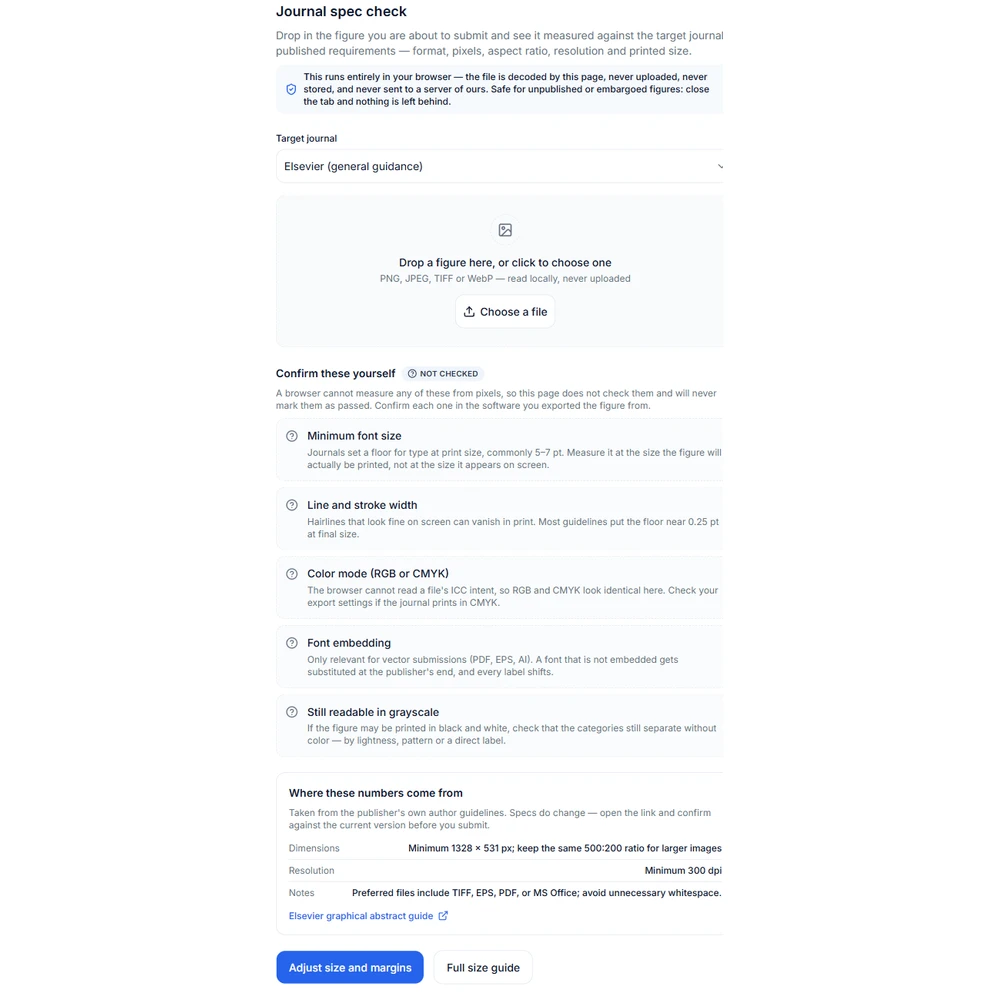
This tool only removes blank pixels around the edge — no content inside the figure is redrawn, moved, recolored, or resampled. But the crop does change the image dimensions and therefore its aspect ratio and printed width, so check the result against your target journal before you submit. The figure spec check page at /figure-spec-check reads dimensions, resolution, and color mode from the trimmed file and compares them with the requirement you are submitting to.

Trimming figure margins — questions

Trim a figure now

Drop a file into the tool above. It runs in your browser — free, no sign-in, and nothing is uploaded.