Multi-panel figure

Combine separate figures into one multi-panel figure

Journals want the panels of a composite figure submitted as one file, labelled a, b, c. Drop 2–8 images in above, pick a grid, and the montage is composed with the letters burned in and the panels scaled to match. It runs in your browser: free, no sign-in, no credits, and your panels are never uploaded.

Tüm işlem tarayıcınızda gerçekleşir: görsel bu sayfada doğrudan çözülür, yüklenmez, kaydedilmez ve sunucularımıza gönderilmez. Yayınlanmamış veya ambargolu görseller için güvenle kullanabilirsiniz; sekmeyi kapatın, hiçbir şey kalmaz.

Multiple AI models

GPT Image 2, Nano Banana, Seedream 5, Flux 2 Pro and more — pick the right one per figure.

Up to 4K export

Render at 1K, 2K or 4K for print-ready manuscript output.

Text & sketch to figure

Start from a prompt, or refine a rough hand-drawn sketch.

Free to start

Free account in seconds — every figure is saved to your private history.

Multi-panel figure

What the tool looks like in use

Screenshots of the composer itself, in the order you meet it: drop the panels, pick a grid, tune the spacing and letters, export the PNG.

How the montage is built

Normalise each panel, place it on a grid, label the rows, export once

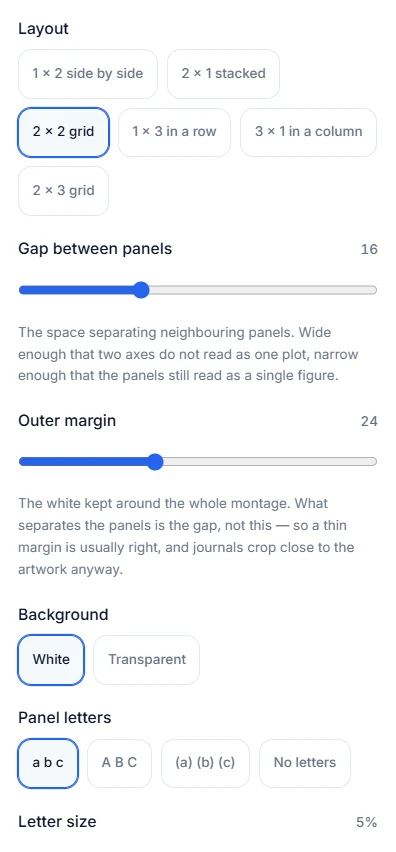
The layout, spacing, background and panel-letter controls1

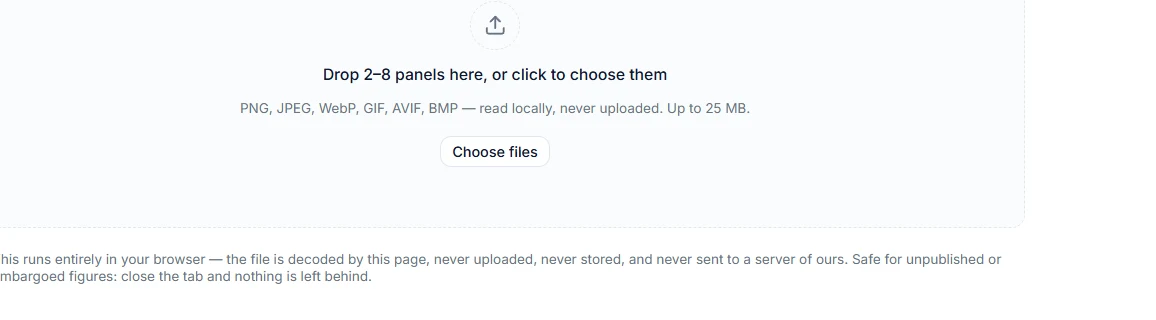
Load 2 to 8 panels without uploading them

Drag the panel files in, click to pick them, or paste a screenshot straight from the clipboard — panels often start life as a screen capture that never becomes a file. PNG, JPEG, WebP, GIF, AVIF, and BMP are accepted, up to 25 MB each, and between two and eight panels can be composed at once. Every file is decoded and drawn by your own browser: no request is made, nothing is stored on a server, and no account is needed. For an unpublished result that is the whole argument for doing this here rather than on a general-purpose collage site that wants your figure first.

  • Drag and drop, file picker, or clipboard paste
  • PNG, JPEG, WebP, GIF, AVIF, BMP, up to 25 MB per panel
  • Between 2 and 8 panels; the export stays disabled below two
  • No sign-in, no credits, no upload
The empty drop area of the multi-panel figure maker2

Pick a grid — panels are matched in size before they are placed

Six presets cover the arrangements a paper figure actually uses: 1×2 and 2×1, 2×2, 1×3 and 3×1, and 2×3, written rows × columns. Until you choose one, the grid follows the number of panels loaded, so three panels land in a row of three rather than in a 1×2 with one orphan below. Panels rarely arrive at comparable pixel sizes — the same chart exported at 150 and at 600 dpi differs fourfold in pixels while being the same figure — so each panel is first normalised by its long edge and only then placed. Composing in raw pixels is what makes one panel render a quarter the size of its neighbour. Column widths follow the widest panel in that column and row heights the tallest in that row, so aspect ratios are preserved and edges still line up.

  • 1×2, 2×1, 2×2, 1×3, 3×1, 2×3 — rows × columns
  • The grid auto-follows the panel count until you pick one
  • Panels are normalised by long edge, so mixed-dpi sources match
  • More panels than cells: rows are appended, no panel is dropped
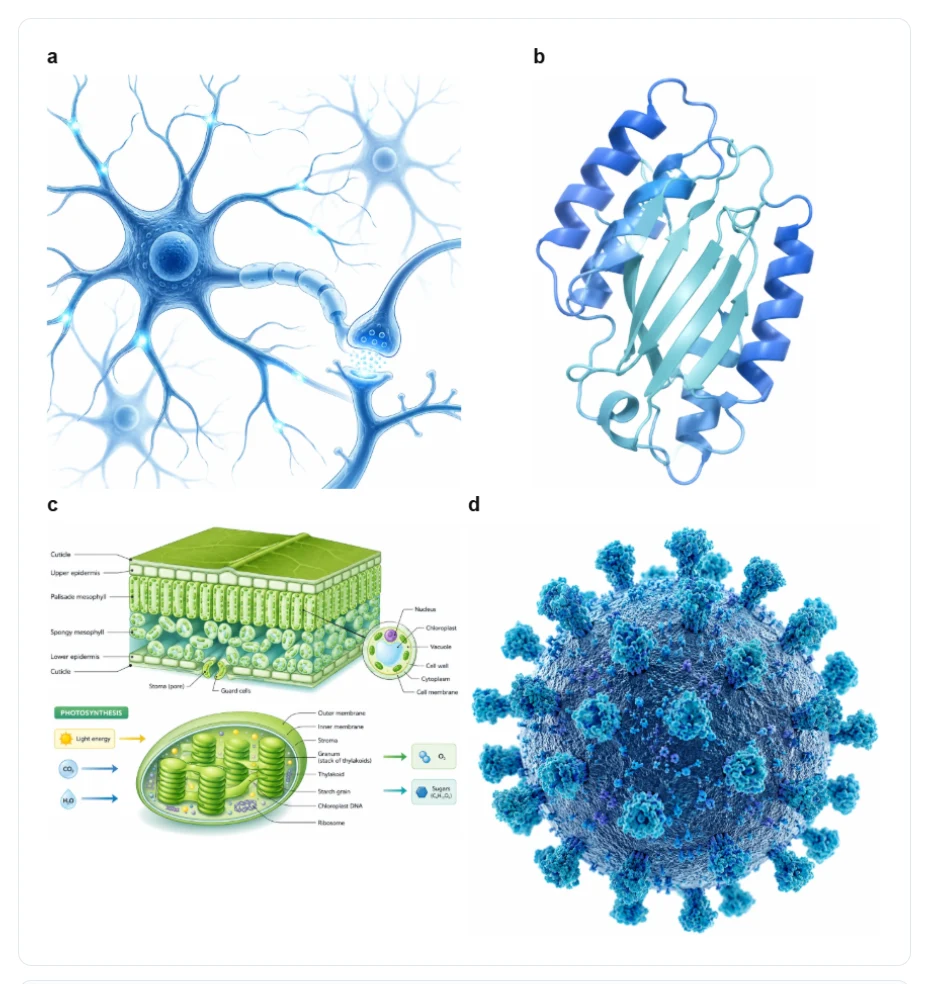
Four figure panels composed on a two-by-two grid with the letters a, b, c and d above each panel3

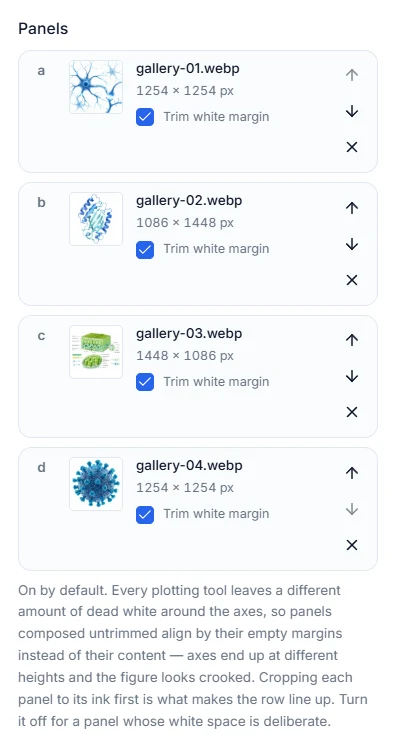
Auto-trim is on by default, because the white margins differ

Every plotting tool leaves a different amount of dead white around the axes, and that margin is invisible until you butt two panels against each other. Compose without trimming and the panels align by their whitespace rather than by their content: one axis sits higher than the next, the gap between columns looks uneven, and no amount of spacing adjustment fixes it because the misalignment is inside the files. So each panel is scanned on load, its content rectangle is found, and the margin is cropped before placement — with a sliver of padding kept so nothing is cut flush to the ink. The checkbox is per panel, in case one of them genuinely needs its surrounding space; on a browser that refuses the pixel scan the checkbox disables itself and the full frame is used.

  • Content bounds are detected on load, per panel
  • Alignment then follows the content, not the exported whitespace
  • A small padding is kept so the crop is not flush to the ink
  • Switch it off per panel when the margin is part of the figure
The panel list showing each source file, its pixel dimensions, a trim toggle and reorder arrows4

Panel letters sit above each row, not on top of the figure

The letters are drawn into a gutter above each row rather than over a corner of the panel. Once a panel has been auto-trimmed there is content at all four of its corners, and a letter placed on top of it lands on a tick label or a data point and becomes unreadable. Four styles are available — a b c, A B C, (a) (b) (c), or none if your journal supplies the labels at typesetting — and the letter height is set as a percentage of the panel, from 2% to 12%, so it stays proportionate however large the montage becomes. Each letter is drawn with a white outline under a black glyph, which keeps it legible if the montage is exported on a transparent background and later dropped onto a dark slide. Letters follow the panel order, so reordering a panel renames it.

  • a b c, A B C, (a) (b) (c), or no letters at all
  • Drawn in a gutter above each row, never over the panel
  • Height set as 2–12% of the panel, so it scales with the figure
  • Burned into the canvas — they survive the export as pixels
The layout, spacing, background and panel-letter controls5

Spacing, background, and a PNG at full panel resolution

Two sliders control the composition: the gap between panels and the outer margin around the whole montage. The background is either white, which is what most journals expect for a submitted composite, or transparent, for a montage headed to a poster or a dark slide deck. The download is always a PNG — the format keeps an alpha channel and does not re-compress the panels the way a JPEG would. The export is not a screenshot of the preview: the montage is redrawn at a scale that puts the largest panel back at its native resolution, so normalising the panels costs nothing in sharpness. Only a montage past what a browser canvas can hold is scaled down, and the tool tells you the size it actually wrote. The file saves as figure-panels.png.

  • Panel gap and outer margin on separate sliders
  • White background for submission, transparent for slides and posters
  • Exported at the native resolution of the largest panel
  • Always PNG, saved as figure-panels.png

Composing is layout, not editing — but the caption still has work to do

This tool arranges panels; it does not touch the pixels inside them. Nothing is recolored, retouched, stretched, or redrawn — a panel is cropped of its blank margin, scaled uniformly, and drawn. That keeps the composition itself compliant with normal image-integrity rules, but it does not discharge your obligations as an author. Publishers expect every panel of a composite figure to be traceable back to its original unprocessed file, so keep the sources you dropped in. And if the panels come from different experiments, different specimens, or different time points, say so explicitly in the caption: placing images side by side in one frame implies to a reader that they belong to one continuous observation, and letting that implication stand unqualified is a misrepresentation even when no pixel was altered.

Multi-panel figure questions

Compose a multi-panel figure now

Drop your panels into the tool above. It runs in your browser — free, no sign-in, and nothing is uploaded.