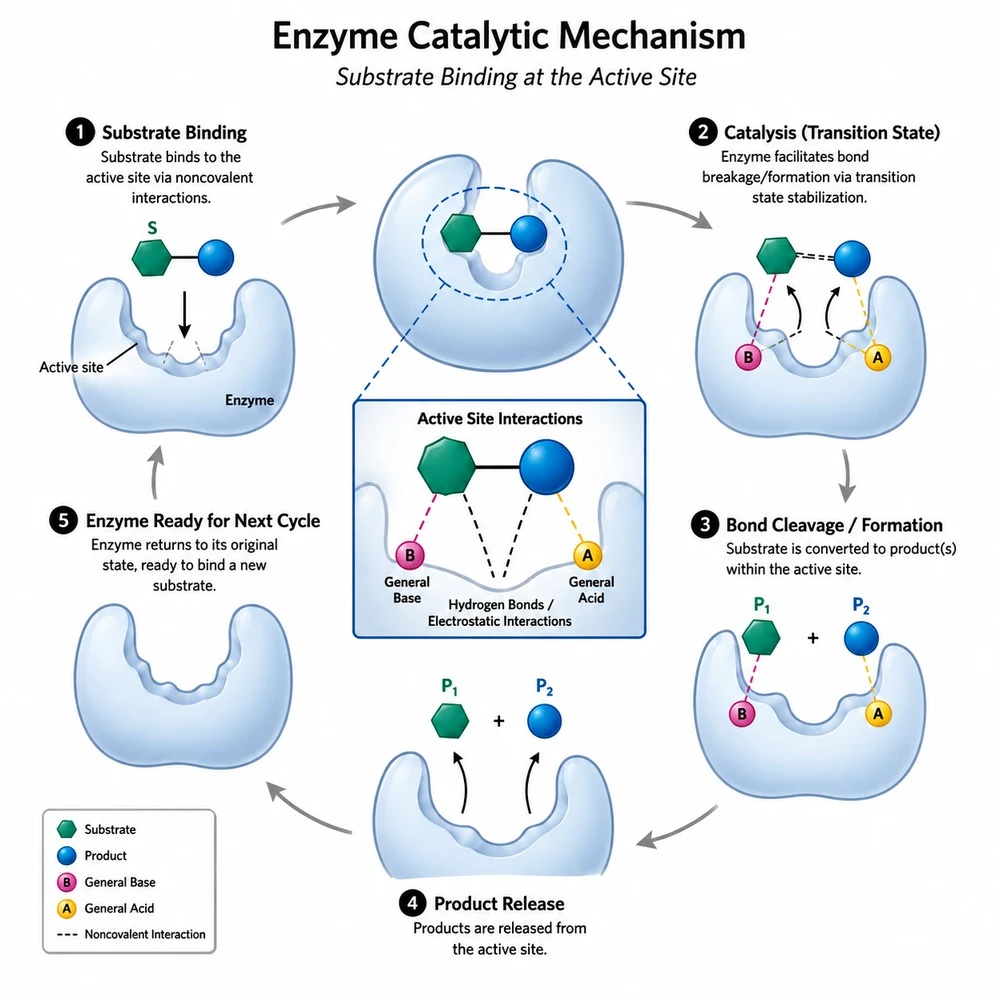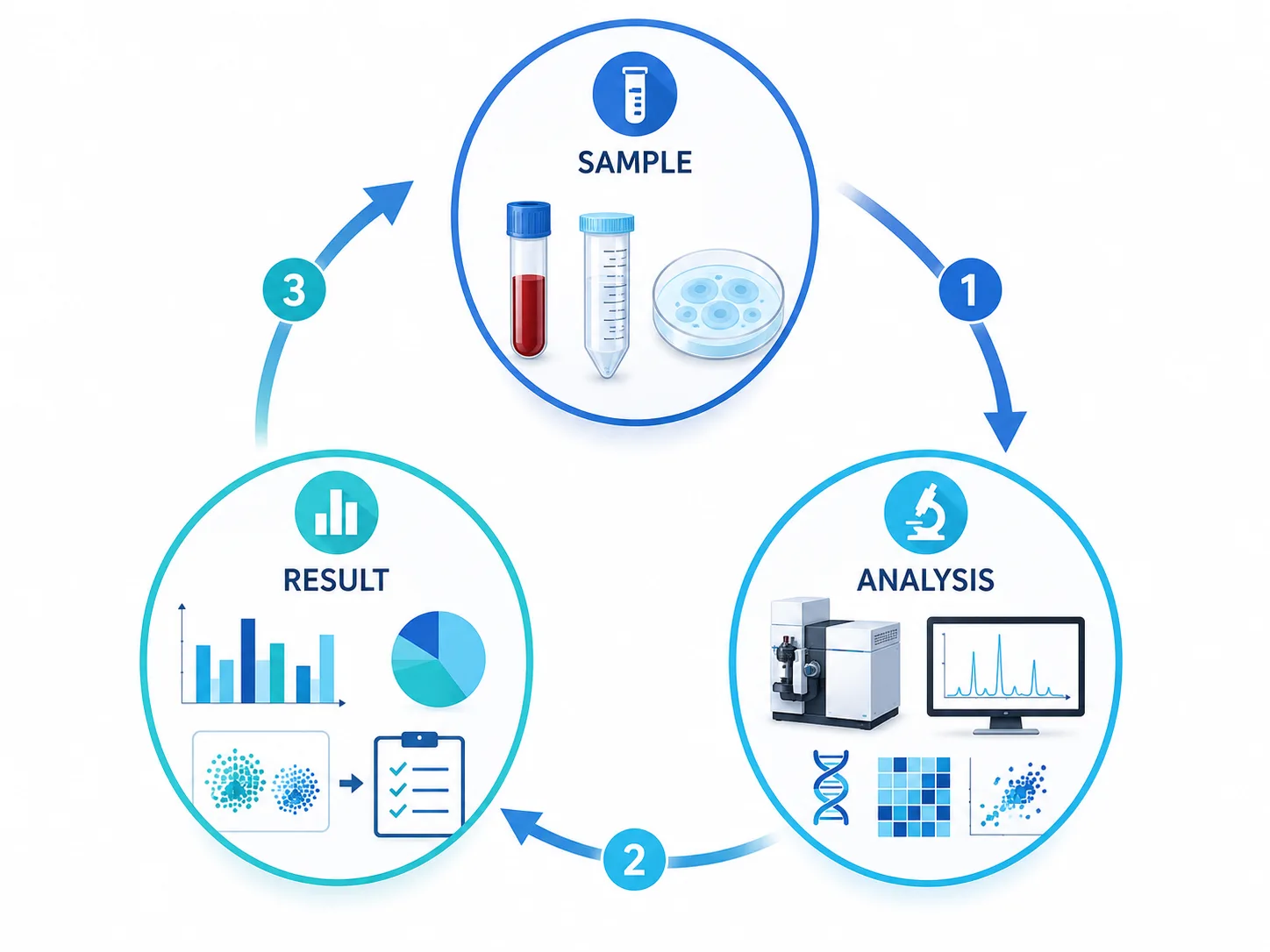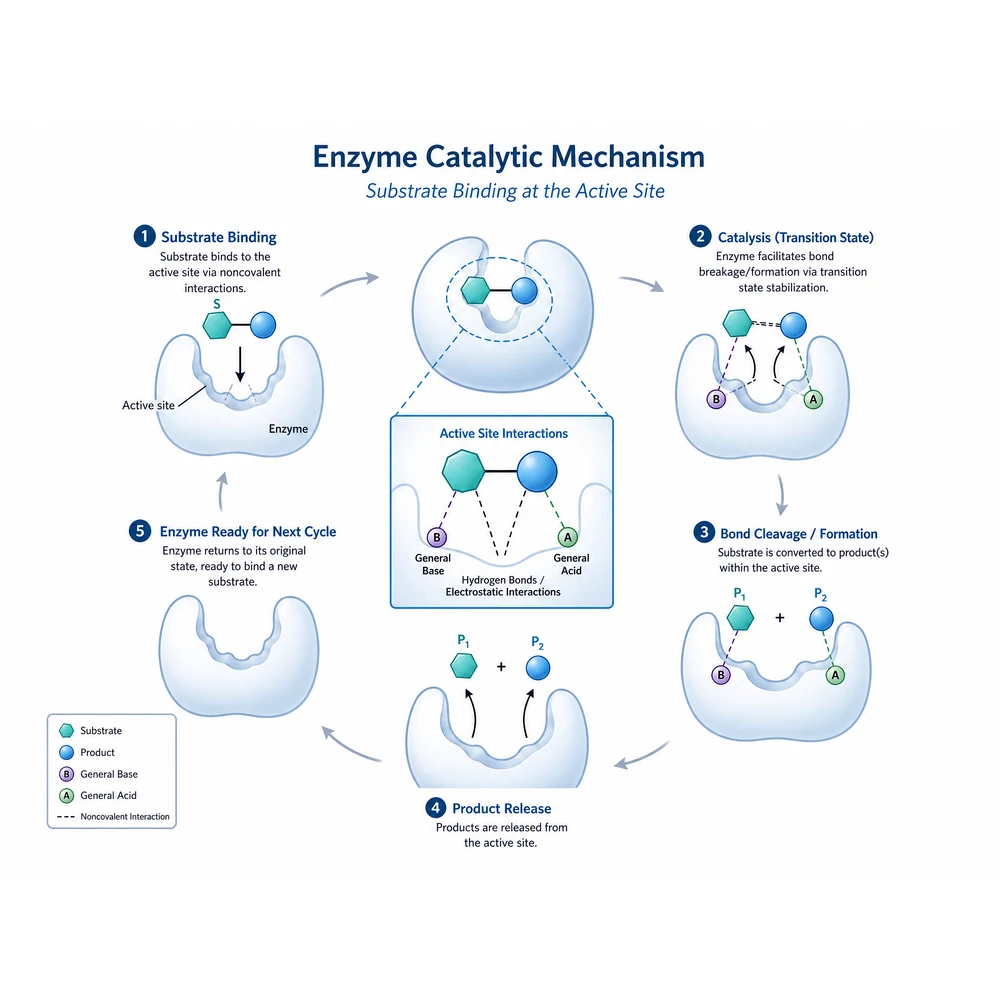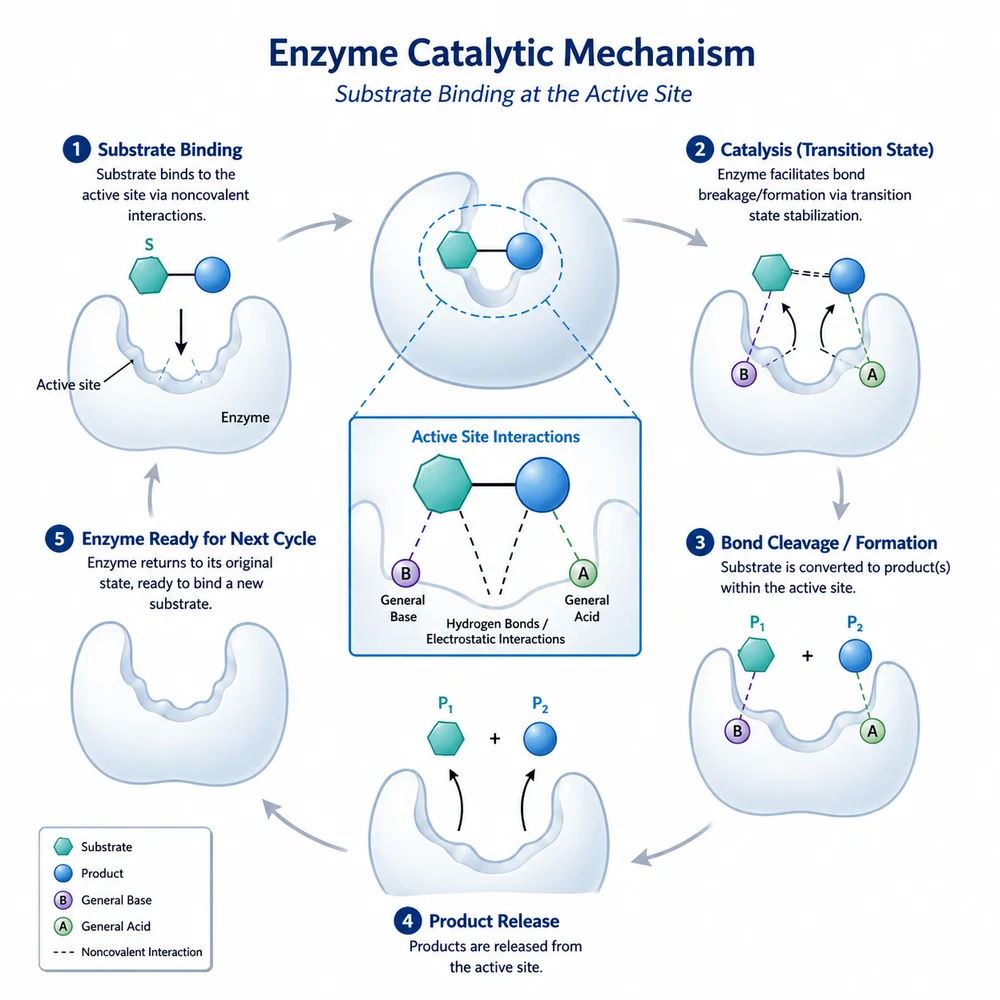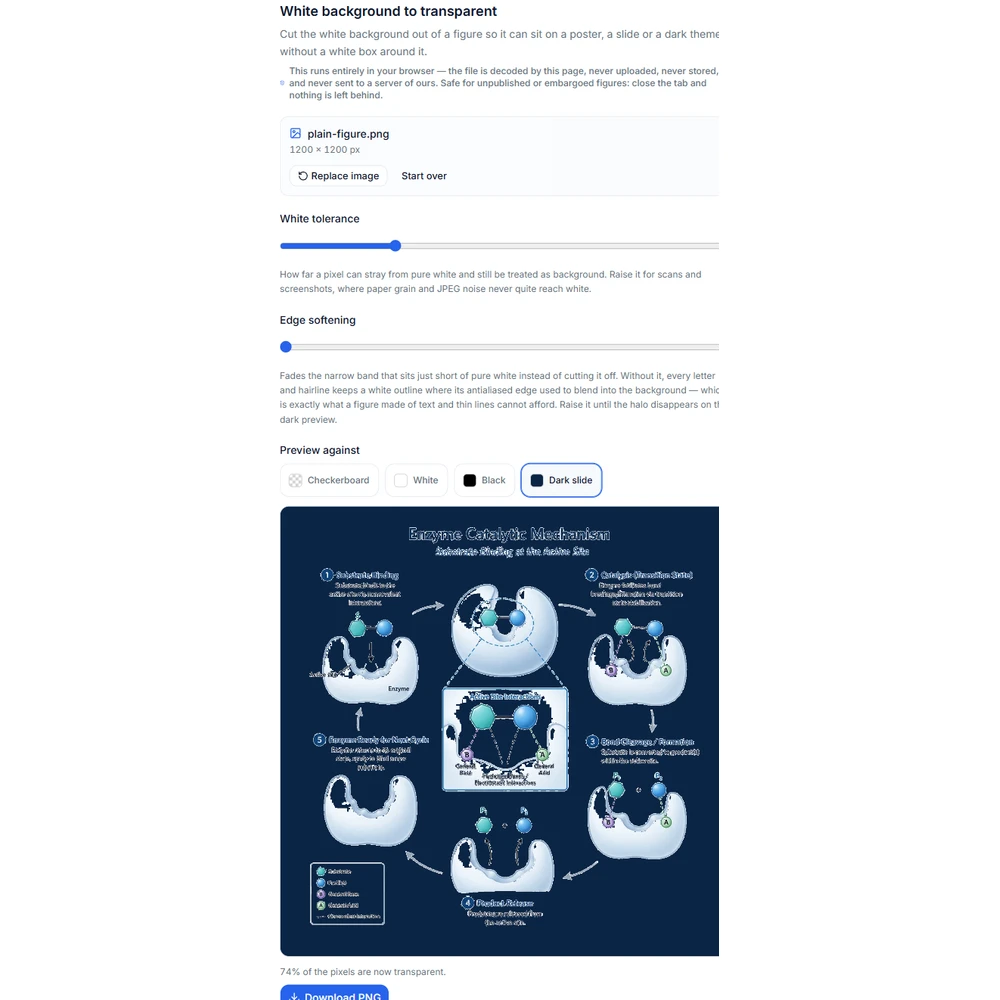
Transparent figure background

Make a figure background transparent

Drop in a figure with a white background, tune the tolerance and edge softening, and download a PNG with a real alpha channel. Everything runs in your browser: no sign-in, no credits, and the file never leaves your machine.

Μετατροπή λευκού φόντου σε διαφανές

Αφαιρέστε το λευκό φόντο από τις εικόνες σας, ώστε να μην εμφανίζεται ως λευκό τετράγωνο όταν τις τοποθετείτε σε αφίσες, διαφάνειες ή σκούρα θέματα.

Όλη η επεξεργασία γίνεται στον browser σας: η εικόνα αποκωδικοποιείται απευθείας από αυτή τη σελίδα, δεν ανεβαίνει, δεν αποθηκεύεται και δεν αποστέλλεται στους διακομιστές μας. Μπορείτε να χρησιμοποιήσετε με ασφάλεια εικόνες που δεν έχουν δημοσιευθεί ή βρίσκονται σε περίοδο εμπάργκο· κλείνοντας την καρτέλα δεν μένει τίποτα.

Multiple AI models

GPT Image 2, Nano Banana, Seedream 5, Flux 2 Pro and more — pick the right one per figure.

Up to 4K export

Render at 1K, 2K or 4K for print-ready manuscript output.

Text & sketch to figure

Start from a prompt, or refine a rough hand-drawn sketch.

Free to start

Free account in seconds — every figure is saved to your private history.

Transparent figure background

What the tool looks like in use

Screenshots of the actual interface, in order of use: load a figure, check it on several backgrounds, adjust the edge, and export a PNG.

Browser-local workflow

Two sliders, four backgrounds, one PNG

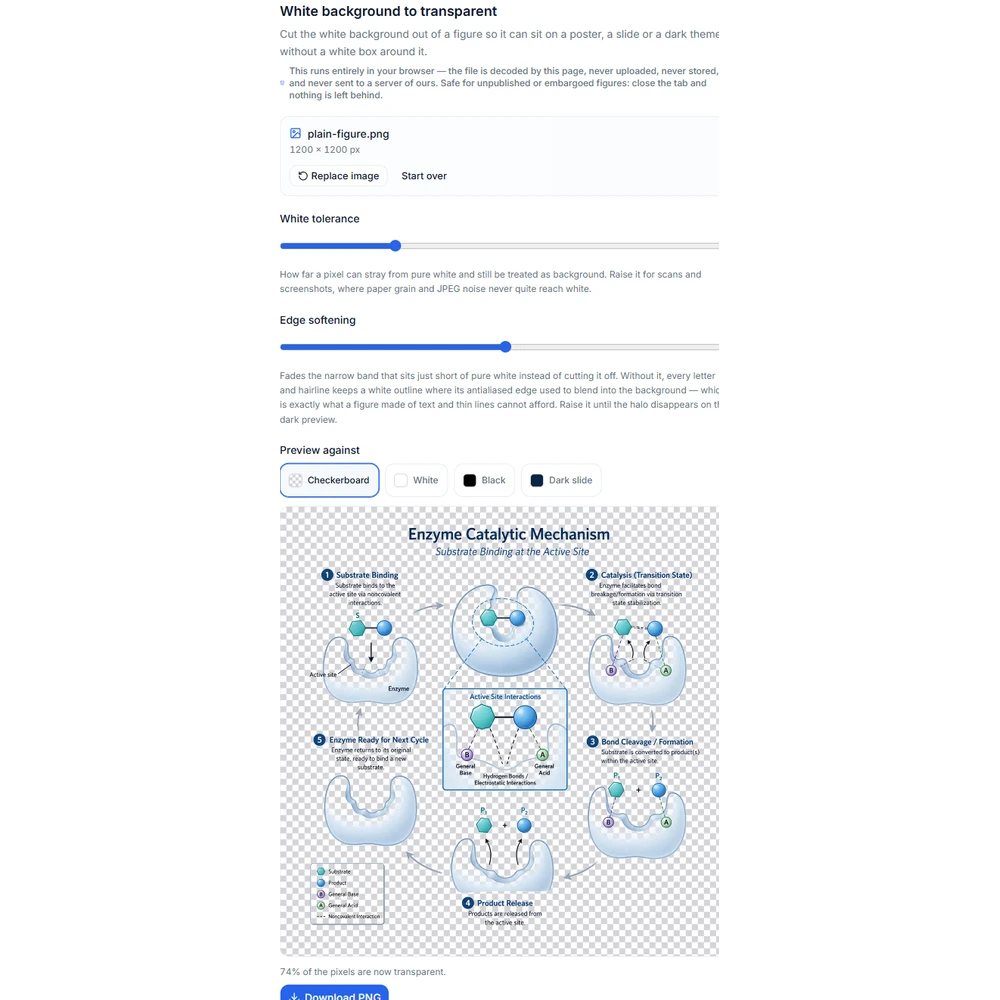
The edge softening slider being adjusted, with the fringe around labels and thin lines fading out1

Load a figure that has a white background

Drop a file onto the panel, paste one from the clipboard, or pick it from disk. The image is decoded in your browser and processed on a canvas — no request is made to any server, so an unpublished figure stays on your machine. Very large images are previewed at a reduced size for responsiveness, while the export always reprocesses the original at full resolution.

  • PNG, JPEG, WebP, GIF, BMP and AVIF, up to 25 MB
  • Works signed out, at no credit cost
  • Suited to white or near-white backgrounds, not photographs
  • Keep the original file — the export is a new PNG, not a replacement
The readout showing what percentage of the pixels became transparent, next to the loaded figure2

Set how close to white still counts as background

The tolerance slider decides which pixels are treated as background. At zero, only pure white is removed, which is right for a figure exported cleanly from vector software. Raise it when the background is slightly off-white — a scan with paper grain, a screenshot with a faint gradient, or a JPEG whose compression has speckled the white. Raise it too far and pale fills, light gray gridlines, and the lightest end of a colormap start disappearing along with the background, so increase it in small steps and watch the figure rather than the number.

  • Start low and raise it only if white patches survive
  • Scans and photographed pages need more tolerance than exports
  • Watch pale fills and light gridlines for accidental loss
  • The tolerance applies to the whole image, not a selected region
The download button exporting the result as a PNG file with an alpha channel3

Edge softening is what decides whether the result is usable

A scientific figure is almost entirely text and thin lines, and every character and hairline is drawn with anti-aliasing: a band of pixels that fades from the ink toward the background. Cut the alpha channel with a hard threshold and that band is kept fully opaque — a ring of near-white pixels left standing around every letter, tick mark, and one-pixel rule. On a white slide you will never see it. Move the same PNG onto a dark background and the figure appears outlined in a white halo, which is the single most common way a transparent export gives itself away. The softening slider widens the transition band below the white cut so those pixels lose opacity in proportion to how close to white they are, and the edge fades out instead of ending abruptly. Push it too high and genuinely light content starts to go translucent, so raise it until the halo disappears and stop there.

  • Zero softening gives a hard cut and a visible fringe on dark grounds
  • Text-heavy and line-heavy figures need the most softening
  • Judge the setting at full size, not on a shrunken preview
  • Back it off if pale strokes start turning translucent
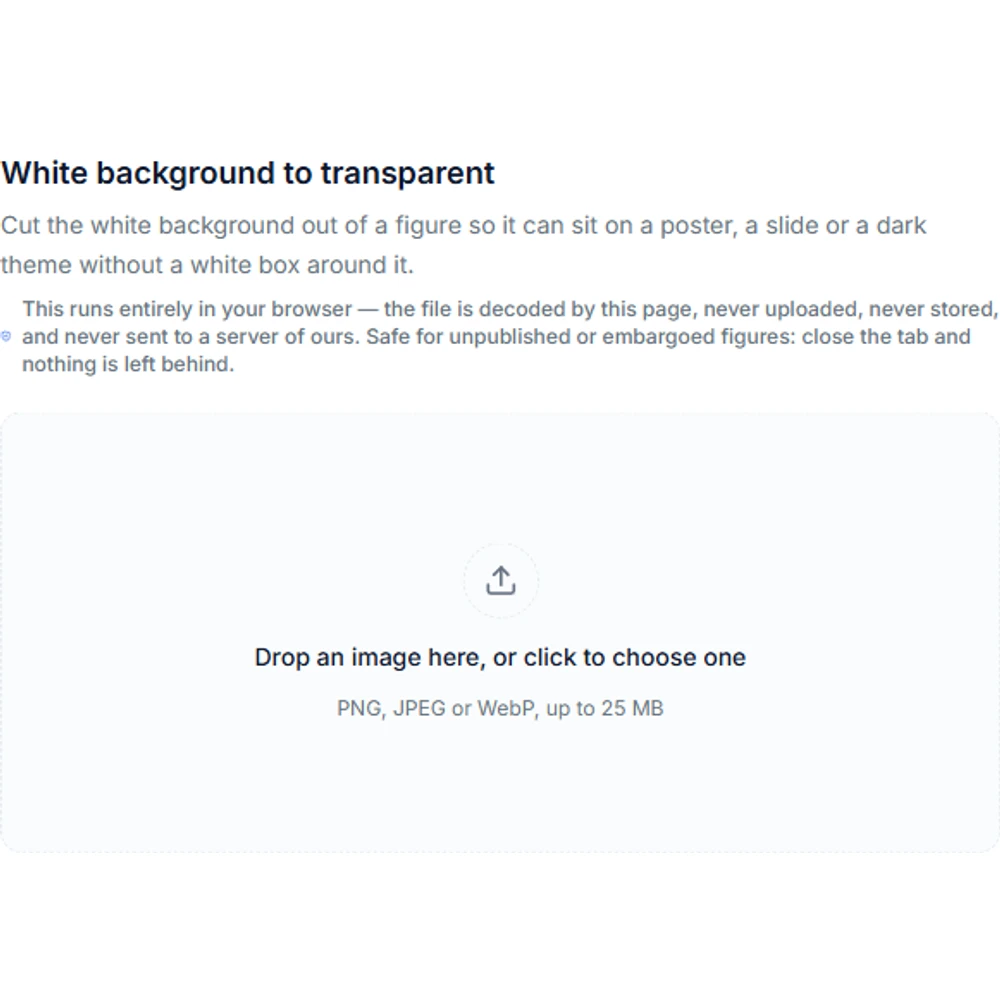
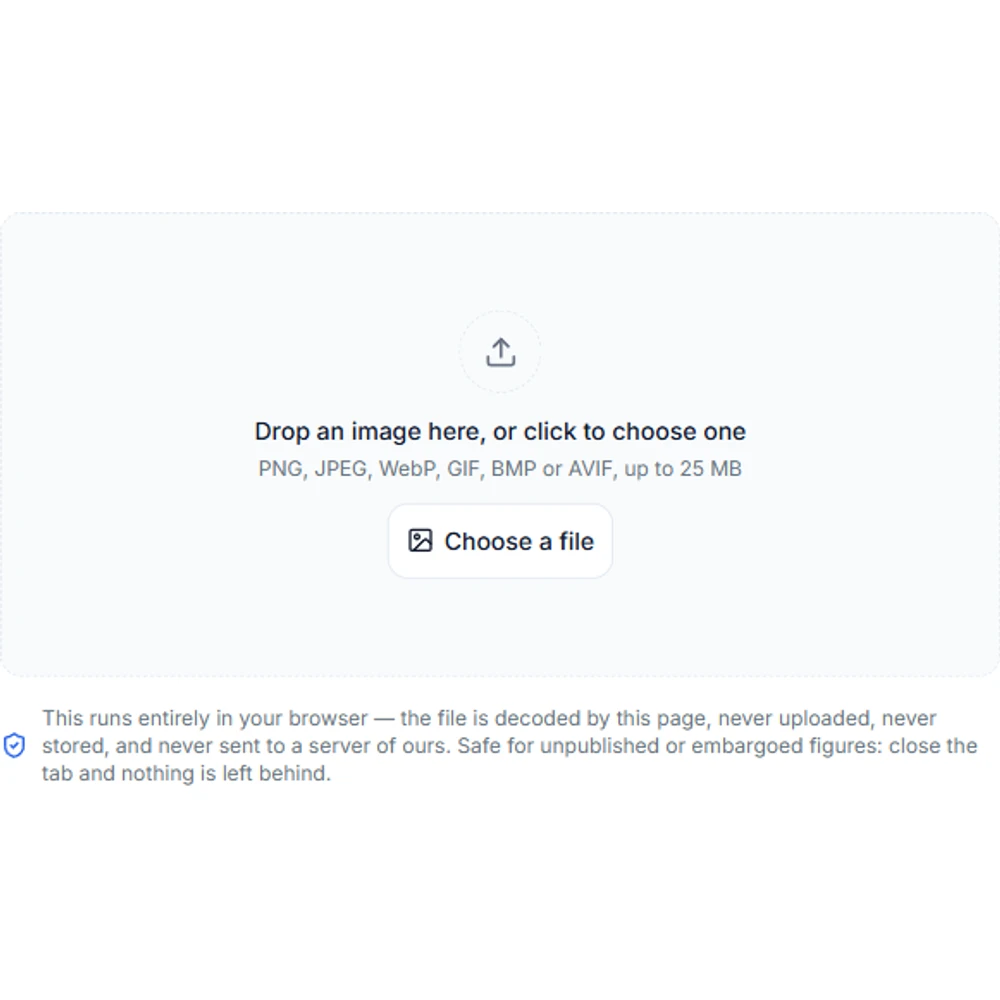
The transparent-background tool before a file is loaded, showing the drop area for a figure4

Check the result on a dark background before you export

The preview offers four grounds: a checkerboard, white, black, and the navy that most dark slide decks land on. The checkerboard tells you that pixels are transparent; only a dark ground tells you whether the edges are clean. Judging a white-backed figure on a white preview is the mistake that ships haloed exports, because every defect this tool can leave behind is white on white. Switch to the dark slide, look along the edges of the smallest text and the thinnest rules, and adjust tolerance and softening from there. The transparency readout is a second check: if only a few percent of the image became transparent, the figure probably never had a white background to begin with.

  • Checkerboard confirms transparency, dark confirms edge quality
  • Inspect the smallest text and the thinnest lines first
  • Use the black ground for a harsher test than the navy
  • A very low transparent share means the wrong kind of source image
The processed figure shown over a checkerboard background, the standard way of displaying transparency5

Export a PNG and place it where it is going

The download is always a PNG, because JPEG and BMP have no alpha channel and would flatten the background back in the moment they were written. If you loaded a JPEG, the tool says so and converts the export to PNG. The export is processed from the original bitmap rather than from the on-screen preview, so a large figure keeps its full resolution. Then place it in the real deck, poster, or document and look at it there — the surrounding background is the only context in which the edges can honestly be judged.

  • Output is PNG with an alpha channel, at the original pixel size
  • JPEG and BMP inputs are converted, and you are told before you click
  • Check the file in the actual slide or poster, not only in the preview
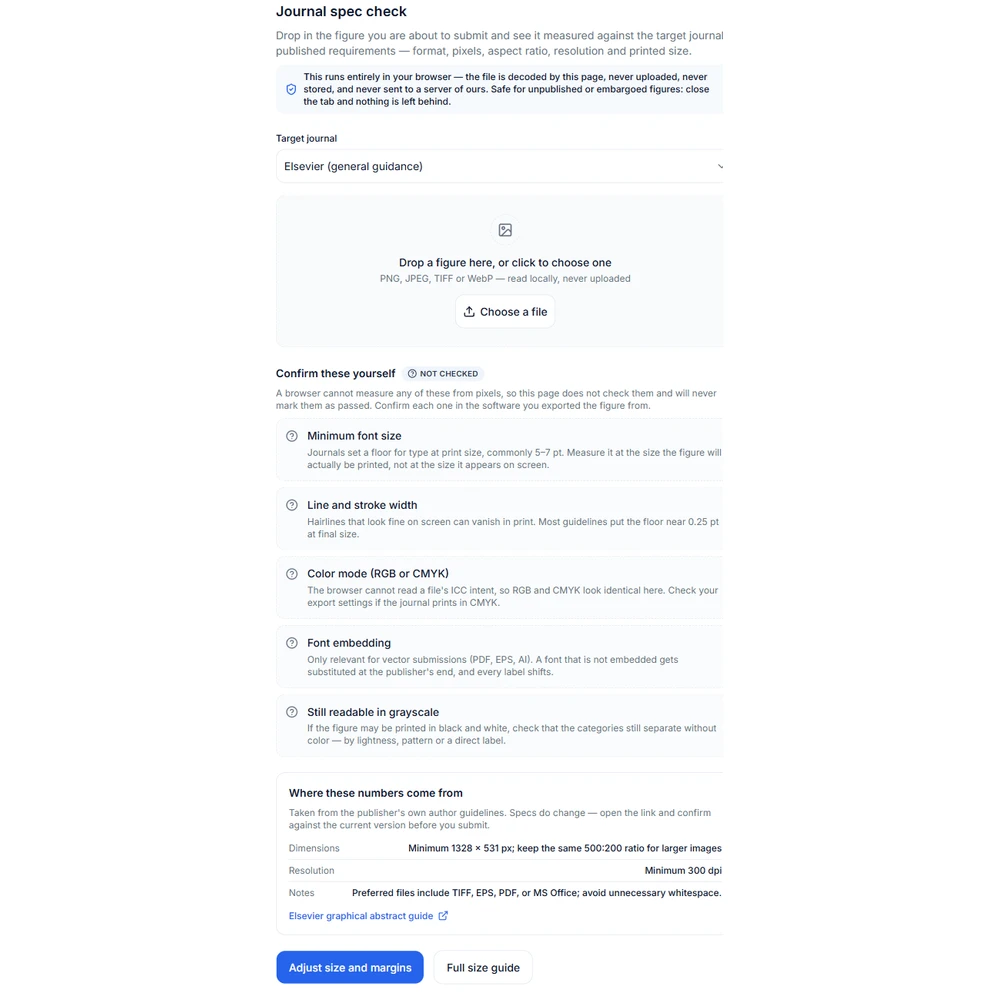
  • For journal submission, confirm the publisher accepts transparency

Not appropriate for raw experimental images

Making a background transparent changes only the alpha channel — the color of every remaining pixel is untouched. That still does not make it safe for all images. On micrographs, gel electrophoresis scans, blots, and similar primary data, the background carries information: exposure, staining, lane spacing, and the absence of signal are part of the evidence. Removing it produces a figure that misrepresents the underlying experiment and may breach a publisher’s image-integrity policy. Use this tool on drawn material — schematics, diagrams, charts, icons, and illustrations — and leave acquired data on its original background.

Transparent background questions

Beyond removing the background

The transparency tool is free and needs no account. Recoloring, restyling, and figure generation run on SciFig models and need a signed-in account.